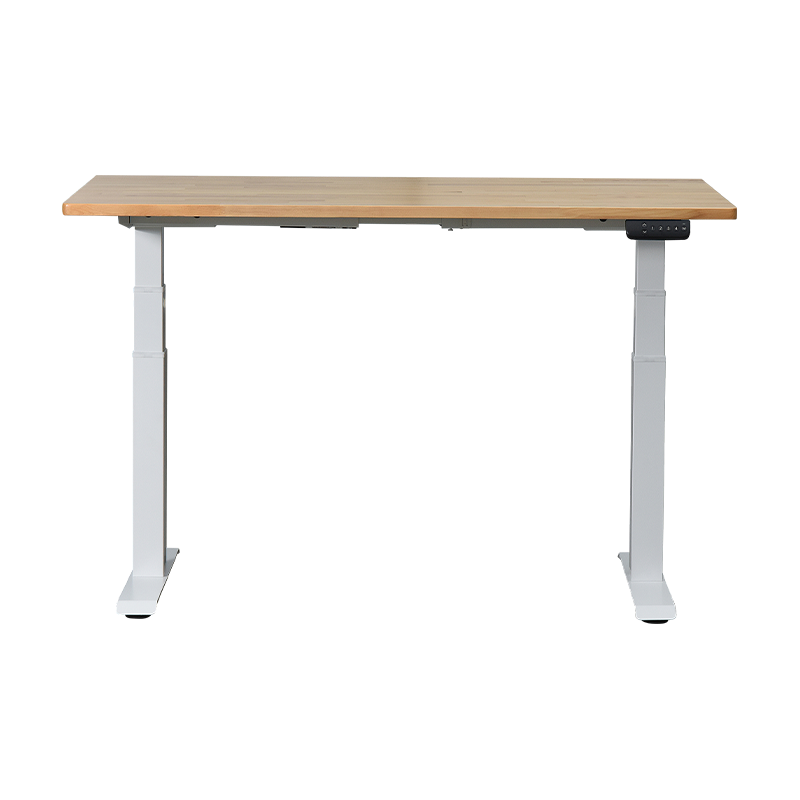

Setting up a standing desk correctly takes more than just raising the surface to a comfortable height. A proper standing desk set up requires attention to monitor placement, ergonomic posture, fatigue management, and smart use of your desk's adjustment features. Whether you are working with a manual crank model or a modern electric adjustable desk, this guide walks you through every step to create a workspace that supports your health and productivity.
The short answer: set your desk so your elbows form a 90-degree angle when your arms rest on the surface, position your monitor at arm's length with the top of the screen at or just below eye level, and alternate between sitting and standing every 30–60 minutes. That foundation alone eliminates most of the discomfort people associate with adjustable desks.
| Body Point | Sitting Target | Standing Target |
|---|---|---|
| Elbow angle | 90–100° | 90–100° |
| Monitor distance | 50–70 cm | 50–70 cm |
| Screen top edge | At or slightly below eye level | At or slightly below eye level |
| Wrist position | Neutral / straight | Neutral / straight |
| Neck tilt | 0–15° forward max | 0–15° forward max |
| Hip angle (seated) | 90–110° | N/A |
Why Getting the Standing Desk Position Right Matters
An incorrectly positioned standing desk can create the same postural problems it was meant to solve. Research from the National Institute for Occupational Safety and Health shows that musculoskeletal disorders account for roughly 33% of all workplace injuries, many of which originate from poorly configured workstations. Simply owning an electric desk that adjusts height is not enough — the correct standing desk position is what delivers the benefit.
Studies also indicate that alternating between sitting and standing reduces lower-back discomfort by up to 54% within four weeks of consistent use. Heart rate variability, alertness, and afternoon energy levels all show measurable improvement when workers use a properly configured adjustable desk. The goal of this section is to give you the physiological context so every setup decision you make has a clear reason behind it.
Reported Health Improvements from Proper Standing Desk Use (%)
Source: aggregated ergonomic workplace studies, 2019–2023
The chart above illustrates the range of benefits workers report after transitioning to an ergonomic standing desk setup and following proper positioning guidelines. Lower back pain reduction leads all categories at 54%, while improved mood — often overlooked — still registers at 34%, highlighting that the benefits of a correct standing desk position extend beyond the purely physical. These figures reinforce why investing time in setup is worthwhile from day one.
How to Find Your Correct Desk Height: The Elbow Rule
The fastest way to determine how to set standing desk height is the elbow rule. Stand upright with your shoulders relaxed and arms hanging naturally at your sides. Bend your elbows to 90 degrees. The height of your forearms is the height your desk surface should be at. For most adults this falls between 95 cm and 115 cm depending on stature, but the principle holds regardless of body type.
For the seated position on a power lift desk, the same elbow angle applies but your feet must rest flat on the floor — or on a footrest — with thighs roughly parallel to the ground. If your chair does not allow this neutral hip angle, adjust the chair first, then re-calibrate the desk. Many people make the mistake of setting the chair height last, which creates a cascade of compensations throughout the whole ergonomic chain.
Step-by-Step: How to Raise a Desk to the Right Height
- Stand in front of your desk wearing the shoes you typically work in (heel height changes the measurement).
- Let your arms hang relaxed, then bend elbows to 90 degrees.
- Ask a colleague to measure the floor-to-forearm distance, or use a tape measure against a wall.
- Use the desk controller to raise or lower the surface to that measurement. On most electric desks that adjust height, a single button press moves the frame at 25–38 mm per second.
- Stand at the desk, type a few sentences, and check: are your wrists straight? Shoulders relaxed? Elbows at ~90 degrees? Fine-tune by ±1 cm until everything feels neutral.
- Save this value to a memory preset so you never have to recalibrate (see the preset programming section below).
Recommended Standing Desk Height by User Height (cm)
Approximate recommended desk height in centimetres for standing positions based on user height
The column chart above provides a practical reference for setting your electric adjustable desk based on body height. Values represent approximate optimal desk surface heights for standing work based on average arm proportions. Because body proportions vary — especially torso-to-leg ratios — always treat these as starting points and apply the elbow-rule test afterward. Taller users will notice the desk range expands considerably, which is why a wider-range electric desk that adjusts height (typically 60–125 cm) is recommended for users over 185 cm.
How to Set Up a Standing Desk: Full Ergonomic Checklist
A complete ergonomic standing desk setup involves more than the desk height. The monitor arm, keyboard tray, anti-fatigue mat, and cable management all interact to create either a supportive or a problematic workstation. Work through each element systematically.
Monitor Placement
Position the monitor so the top of the screen is at eye level or up to 5 cm below. The viewing distance should be 50–70 cm — roughly arm's length. Tilt the screen back 10–20 degrees to reduce glare. If you use a dual-monitor setup, place the primary screen directly in front of you and the secondary screen at a 30-degree angle to avoid constant neck rotation. A monitor arm gives you the flexibility to fine-tune position every time you switch between sitting and standing modes on your adjustable desk.
Keyboard and Mouse
The keyboard should sit directly in front of you with the mouse on the same plane. Wrists must stay neutral — not angled up (extension) or down (flexion). A negative-tilt keyboard tray can help achieve this, especially during long typing sessions. Keep the mouse within easy reach so you are not reaching or hunching your shoulder forward. This is one of the most overlooked elements in a standing desk setup.
Anti-Fatigue Mat
Standing on a hard floor for extended periods causes fatigue in the calf muscles, lower back, and feet. An anti-fatigue mat with a contoured surface encourages micro-movements that keep circulation active. Mats between 1.5 cm and 2.5 cm thick strike the best balance between cushioning and stability. If you prefer a mat with a balance board feature, keep in mind that beginners should limit balance-board use to 10–15 minutes at a time initially.
Footwear and Foot Position
Wear supportive shoes with cushioning whenever you stand at your desk. High heels shift the center of gravity forward and increase lumbar strain by up to 40%. Keep feet hip-width apart or slightly wider, with weight distributed evenly. Shifting your weight periodically from one leg to the other is natural and beneficial — it is the micro-movement that keeps muscles from locking up.
Ergonomic Setup Comparison: Basic vs Optimized Standing Desk Workstation
Ergonomic quality score (0–10 scale) across five workstation dimensions
The radar chart compares a basic standing desk configuration — where users simply place a monitor on the desk surface and rely on default chair height — against a fully optimized ergonomic setup that addresses every dimension. The gap is dramatic across all five axes. Even partially closing this gap, for example by adding a monitor arm and an anti-fatigue mat, moves a workstation measurably toward the optimized profile. The Posture axis is especially telling: without systematic setup, posture scores remain low regardless of the quality of the desk hardware itself.
How to Stand at a Stand Up Desk Without Fatigue
The most common reason people abandon their stand up desk setup is muscle fatigue that builds over the first few weeks. This is not a sign that standing desks do not work — it is a sign that standing is a skill the body needs to relearn. Most sedentary adults have significantly weakened postural muscles, and asking those muscles to suddenly support the body for hours triggers soreness.
The recommended approach is gradual acclimation: stand for 15–20 minutes every hour during the first two weeks, then increase to 30 minutes per hour in weeks three and four. By week six or seven, many users comfortably stand for 45-minute blocks. A 2:1 sit-to-stand ratio is a widely cited sustainable target for full-time desk workers.
Posture Points When Standing
- Chin slightly tucked, ears over shoulders — not jutting forward.
- Shoulders back and relaxed, not pulled up toward the ears.
- Slight natural curve in the lower back — not arched or flattened.
- Core lightly engaged — imagine holding a grape under your navel without crushing it.
- Knees soft, not locked. Locking the knees restricts blood flow and causes lower-limb swelling.
- Weight balanced equally across both feet.
Recommended Standing Time Per Hour — 8-Week Acclimation Plan (minutes)
Start at 15 minutes standing per hour and increase gradually to avoid fatigue and injury
The line chart maps a proven 8-week standing progression designed to build postural endurance without risking overuse injury. Weeks one and two hold at 15 minutes to let the calf and lower-back stabilizer muscles adapt. From week three onward, the curve rises steadily until reaching a 45-minute standing block in week eight — equivalent to the 2:1 sit-to-stand ratio that occupational health professionals typically recommend. Users who skip the acclimation phase and immediately stand for 60+ minutes per hour report roughly three times more dropout rates within the first month compared to users who follow a graduated schedule.
How to Use a Standing Desk: Programming Presets on an Electric Adjustable Desk
One of the most underused features of a power lift desk is the memory preset system. Most modern electric desks that adjust height include a digital control panel that stores two to four height positions. Once programmed, transitioning between sitting and standing takes a single button press instead of a manual adjustment — removing the friction that causes people to stay in one position too long.
How to Set Presets on a Standing Desk Controller
The exact steps vary by controller model, but the general process for most adjustable desk controllers follows this sequence:
- Initialize the desk: Hold the down button until the desk reaches its lowest position and the display shows "000" or a reset indicator. This calibrates the motor's position sensor.
- Set your sitting height: Use the up/down buttons to bring the desk to your calibrated sitting height. Confirm the display reads your target measurement.
- Save to preset 1: Press and hold the "M" or "SET" button until the display blinks, then press "1". The display confirms with a steady readout.
- Set your standing height: Raise the desk to your calibrated standing height using the up button.
- Save to preset 2: Hold "M" or "SET" again until it blinks, then press "2". The preset is now stored.
- Test both presets: Press "1" to return to sitting height, then "2" to return to standing. The desk should travel automatically to each stored position.
If you share a standing desk with a colleague, use preset 3 and 4 (where available) for their sitting and standing heights. Some advanced controllers allow a lock function to prevent accidental height changes — useful in shared office environments.
Reminder Timers: Building the Sit-Stand Habit
Several stand desk manual controllers include a built-in reminder timer (sometimes called "sit-stand reminder" or "Anti-sedentary reminder") that buzzes or flashes after a set interval — typically 30 or 45 minutes. If your controller has this feature, activate it. Research from Stanford's Behavior Design Lab suggests that implementation intentions tied to a cue (such as a timer alert) produce behavior change far more reliably than willpower alone. If your controller lacks a timer, a simple phone alarm works just as well.
Best Standing Desk Setup: Accessories That Make a Measurable Difference
Reaching the best standing desk setup for your specific needs involves layering accessories strategically. Not every accessory is necessary for every user — the right combination depends on your task type, health profile, and room layout. Below is a prioritized view of which accessories deliver the most ergonomic return.
| Accessory | Primary Benefit | Priority |
|---|---|---|
| Anti-fatigue mat | Reduces leg and lower-back fatigue | Essential |
| Monitor arm | Independent screen height + depth adjustment | Essential |
| Cable management tray | Prevents cable snag during height transitions | Recommended |
| Keyboard tray | Negative tilt for neutral wrist alignment | Recommended |
| Laptop stand | Raises laptop screen to eye level | Recommended |
| Desk pad / writing mat | Wrist cushioning during mouse use | Optional |
| Monitor privacy screen | Reduces eye strain from open-plan glare | Optional |
Accessory Impact: Comfort vs Productivity Improvement Score (out of 10)
Scores based on aggregated user surveys and ergonomic researcher assessments (out of 10)
The grouped bar chart makes the trade-offs between comfort and productivity impact visible for the four most common standing desk accessories. An anti-fatigue mat scores highest for comfort (9/10) but only moderately on productivity (6/10), reflecting its role in reducing physical strain rather than workflow efficiency. A monitor arm, by contrast, scores nearly equally high on both dimensions — it is arguably the single accessory that improves the widest range of outcomes across both categories. Cable management ranks low for comfort but high for productivity because tangled or dangling cables are a constant nuisance during height transitions. Investing in these four accessories collectively transforms a basic electric adjustable desk into a fully optimized workstation.
Standing Desk Setups for Different Work Scenarios
The ideal standing desk setup varies significantly by role. A software developer's standing desk setup prioritizes screen real estate and wrist health; a video editor's setup prioritizes color accuracy and cable throughput; a writer's setup prioritizes minimalism and focus. Below are three scenario-specific configurations.
Developer / Multi-Screen Setup
- Two monitors side-by-side on a dual monitor arm; primary screen centred, secondary at 30 degrees.
- Mechanical keyboard with wrist rest; mouse on the same surface plane.
- USB-C hub mounted under the desk to reduce desktop cable clutter.
- Large anti-fatigue mat (90 × 60 cm minimum) to accommodate foot shifting.
Creative / Single Large Monitor Setup
- 32-inch or ultrawide monitor on a single-arm mount with full tilt range.
- Graphics tablet positioned in the keyboard zone — desk height set to accommodate stylus grip.
- Overhead LED light bar to eliminate screen glare and improve colour grading accuracy.
- Chair with adjustable armrests that slide under the desk cleanly when switching to standing.
Minimalist / Laptop + External Monitor Setup
- Laptop on a vertical stand in closed-lid mode; external display on a monitor arm.
- Wireless keyboard and mouse keep the desktop uncluttered.
- Single USB-C cable connects laptop to power, display, and peripherals — maximum flexibility when the adjustable desk changes height.
- Desk pad covering 80% of the surface creates a unified, clean aesthetic.
About Fengyi Intelligent Furniture Technology
Fengyi Intelligent Furniture Technology Co., Ltd. is headquartered in Ningbo, a major economic hub in China's Yangtze River Delta. Founded in 2021, the company has grown to over 30 employees operating across a 5,000 square metre production facility. Fengyi specialises in the research, development, and manufacturing of steel and wood-frame structural products, with its product range centred on ergonomic lift desks, workbenches, ergonomic chairs, and children's study desks.
As a dedicated Power Lift Desk supplier and Electric Adjustable Desk manufacturer, Fengyi serves overseas markets including the United States, Canada, Australia, the United Kingdom, South Korea, Japan, and Taiwan. Every product is engineered to meet the ergonomic standards of diverse international markets, ensuring users worldwide can benefit from a properly configured standing desk setup.
Frequently Asked Questions
Q1. What is the correct standing desk height for me?
Stand upright and bend your elbows to 90 degrees. Set the desk surface to the height of your forearms. For most adults this is between 95–115 cm. Always adjust while wearing the shoes you normally work in.
Q2. How long should I stand at a standing desk each day?
Begin with 15 minutes of standing per hour and gradually increase to around 30–45 minutes per hour over 6–8 weeks. A 2:1 sit-to-stand ratio is a commonly recommended long-term target.
Q3. How do I program presets on my electric adjustable desk?
Adjust the desk to your target height, then press and hold the "M" or "SET" button until the display blinks, and press a numbered preset key (1, 2, etc.). Repeat for each height. From that point one button press moves the desk automatically.
Q4. Do I need an anti-fatigue mat with my standing desk?
An anti-fatigue mat is strongly recommended. Standing on hard flooring for extended periods increases calf and lower-back fatigue. A mat with a contoured surface encourages small postural shifts that keep circulation active and reduce discomfort.
Q5. Where should my monitor be positioned on a standing desk?
The top edge of your screen should align at or just below eye level, with the screen 50–70 cm from your face. Use a monitor arm to adjust independently of desk height so the monitor position stays correct whether you are sitting or standing.
Q6. Why does my back hurt when I use a standing desk?
Back pain usually results from standing too long before the postural muscles have adapted, incorrect desk height, or locking the knees. Reduce your standing time, re-check your desk height with the elbow rule, and add an anti-fatigue mat to encourage micro-movement.
Q7. Can I use a standing desk with a laptop?
Yes. Place the laptop on a vertical stand in closed-lid mode connected to an external monitor, or raise the laptop on a stand to screen height and connect a separate keyboard and mouse. This prevents the neck-down posture that comes from looking at a laptop screen placed flat on the desk surface.
Q8. What shoes are best for working at a standing desk?
Supportive shoes with cushioned soles and a low, stable heel are best. Avoid prolonged standing in high heels, which shift your centre of gravity forward and increase lumbar strain. Some users prefer supportive indoor slippers or dedicated standing desk footwear.